Settings & Workspace
Manage account-related settings such as profile, workspace, team members, and email integration all in one place.
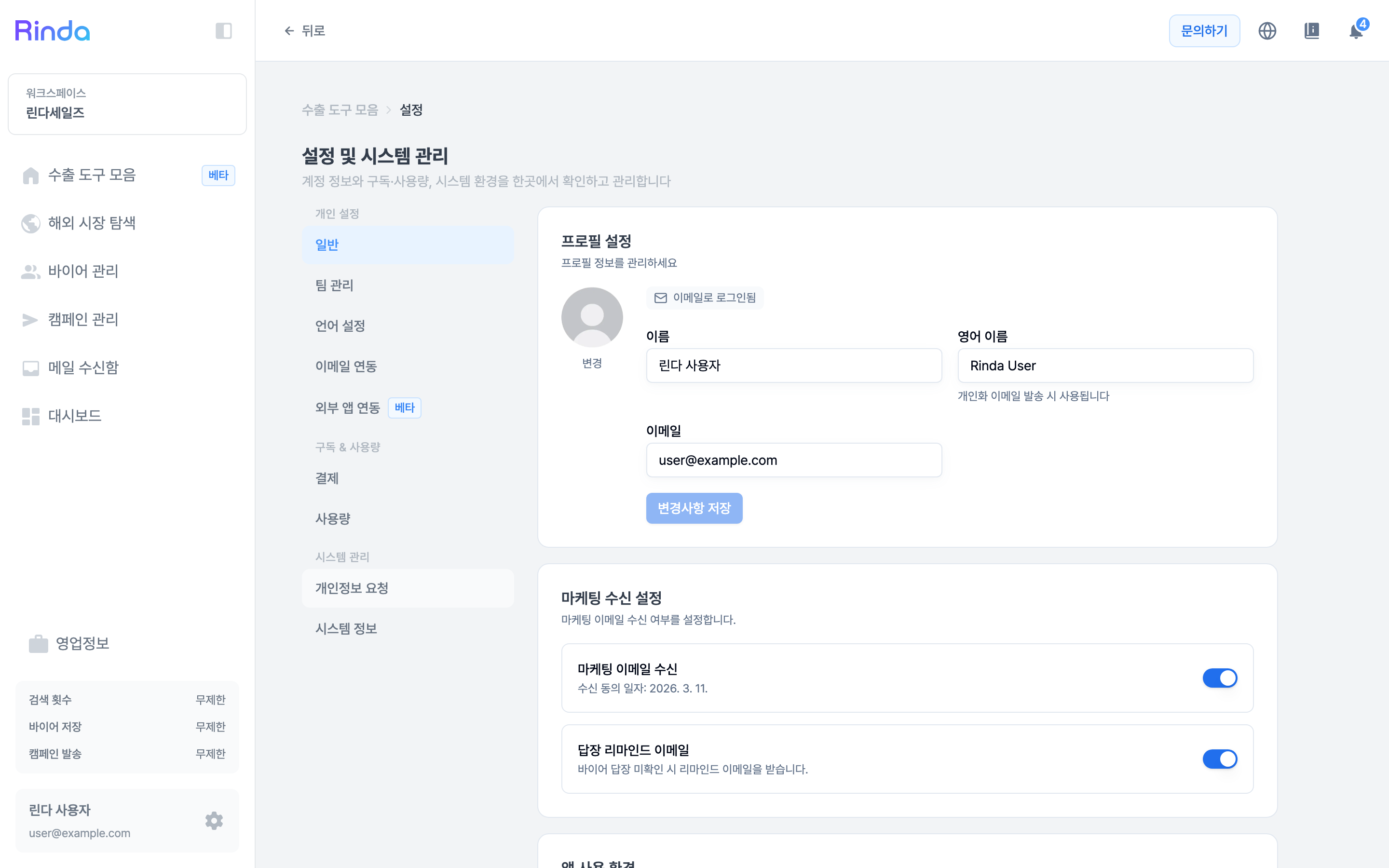
How to Use
1
Profile Settings
You can change your name, email, and profile picture in the Settings menu. Marketing consent is also managed here.
2
Workspace Settings
Change your workspace name, logo, and description. A workspace is a space where you manage buyers and campaigns at a company level. If you don't have a website, you can create an English company introduction page and link it to your URL.
3
Team Member Management
Generate an invite link to invite team members and assign roles: Owner, Admin, or Member. You can also transfer ownership and remove members.
4
Email Integration and Sending Domain
Connect a sending account or register a dedicated Rinda sending domain in the Email Integration tab. Even with many registered domains, you can quickly find them using domain-specific group collapse and search.
5
Domain Management
Check purchased domains and connect an English introduction page.
6
KakaoTalk and SMS Notification Settings
Verify your mobile phone number to receive important notifications via KakaoTalk, such as buyer replies, confirmed meetings, and payments. You can choose whether to receive each notification type, and disabled notifications will be sent via email only.
7
Email Signature
Email signatures are managed in the Email Signature tab of My Sales Info, not in Settings. Once registered, they are automatically added to campaign emails.
8
Account Deletion
Clicking [Manage Account] at the bottom of the General tab in Settings opens the account deletion window. Once you select a reason for deletion and enter your email address, the deletion is scheduled. You can use the service normally until the scheduled deletion date displayed on the screen, and you can revert it before that date via [Cancel Deletion] in the same window. Once the scheduled date passes, everything—including buyers, campaigns, and email integrations—will be deleted and cannot be recovered.
Tips
- •Assigning appropriate roles to team members allows you to achieve both data security and efficient collaboration.
- •With the transfer ownership feature, you can keep the workspace secure even when the person in charge changes.
- •A dedicated manager is assigned starting from the Team Plan. You can check your assigned manager on the Dedicated Manager card in Settings and book a 1:1 consultation.
- •If you delete your account during an active paid subscription, auto-renewal will be scheduled for cancellation so there will be no additional charges. However, refunds are not processed automatically, so if it is within 14 days of payment, please request a refund via [email protected] before deleting your account.
- •For workspaces with team members, ownership is transferred to an existing member and data is preserved, while workspaces used alone are deleted along with the account.
- •If you only want to stop payments, cancel your subscription instead of deleting your account. Your data will remain intact.