Preparing export documents
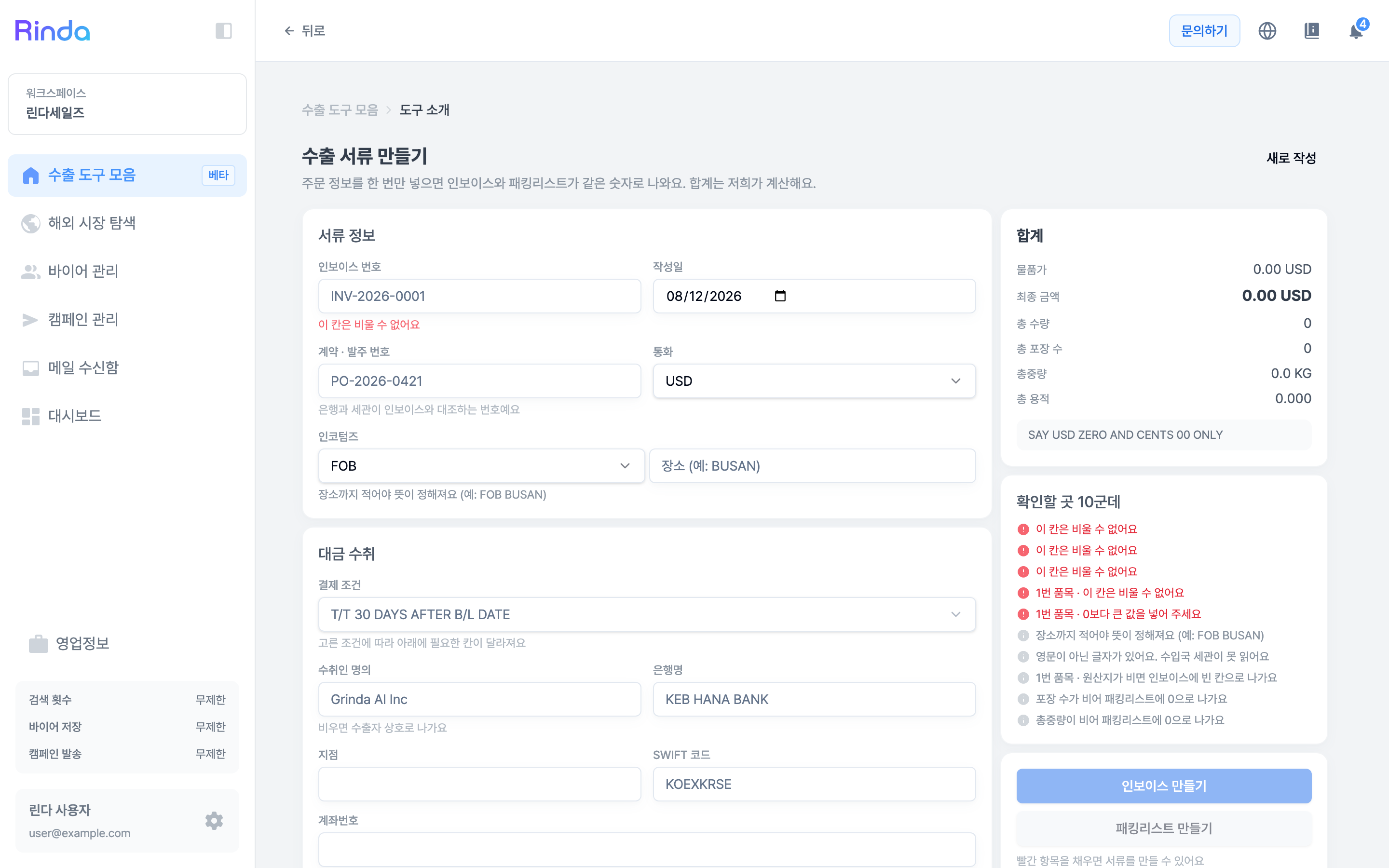
Enter the order information once, and the invoice and packing list will display the same numbers. Totals are calculated automatically, and empty fields are collected and shown in the 'To Check' section.
How to Use
1
Open 'Create Export Documents'
Click the [Create Export Documents] card in the 'Export Toolset' closing stage.
2
Fill in Document Information
Enter the Invoice No., Date, Contract (PO) No., Currency, and Incoterms. For Incoterms, you must specify the location to define the terms (e.g., FOB BUSAN).
3
Enter Payment Receipt Information
The fields below will change based on the selected payment terms. If the beneficiary name is left blank, the exporter's trade name will be used. The bank name and SWIFT code must be accurate as they are verified by the buyer's bank.
4
Clear 'Items to Check'
Empty or mismatched fields are gathered in the 'Items to Check' section on the right. You cannot create documents if red items remain, so fill them in until this section is empty.
5
Create Invoice & Packing List
Download both documents via [Create Invoice] and [Create Packing List]. Since they are generated from the same input, the numbers in both documents will always match.