Find Buyers
AI analyzes global business data to automatically find overseas buyers who may be interested in your products. Simply enter your criteria in natural language.
How to Use
1
Open Find Buyers
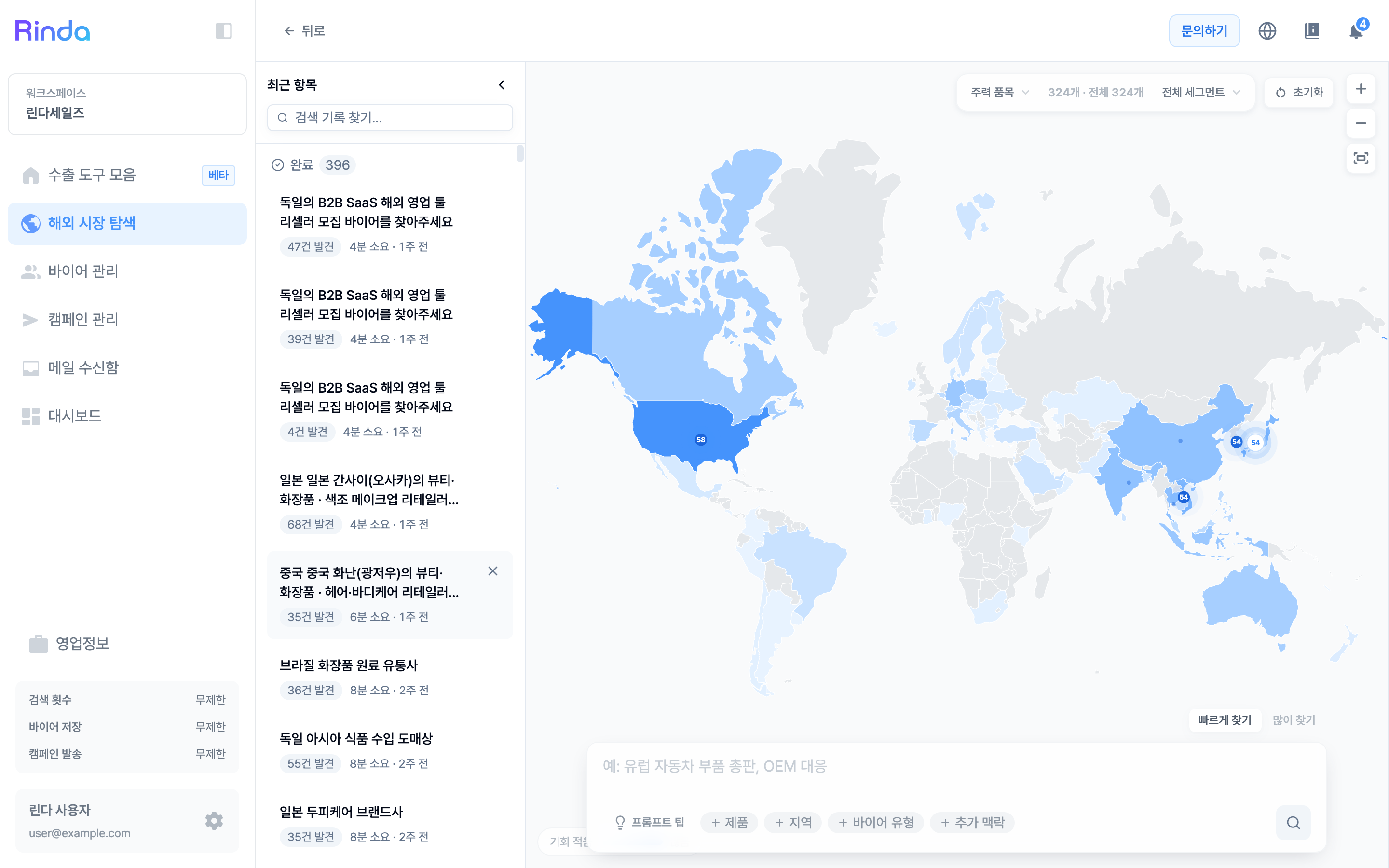
Click Global Market Discovery in the sidebar. On a single screen featuring a world map and a natural language input box, you can seamlessly decide "where to sell" and "who to reach out to."
2
Start from the Map, or Enter Directly
Clicking a country on the map first shows opportunities in that country, followed by a search with pre-set conditions. If you already know which buyers you're looking for, type it directly into the input box below. Example: "US beauty distributor", "Vietnamese machinery import company". You can also enter a company website URL.
3
Narrow Down Criteria
You can add conditions using the product, region, and buyer type chips below the input box. The core product and segment filters at the top of the screen narrow down the opportunities shown on the map, and you can reset them anytime with [Reset].
4
Monitor Discovery Progress
The AI proceeds in the order of establishing a search strategy, defining buyer types, multi-channel searching, collecting contact info, and analyzing fit. You can navigate to other screens while it's in progress, and once complete, results are saved under [Recent Items] on the left.
5
Review and Save Results
For each buyer, their fit level (Optimal/Promising/Exploratory) and decision-maker availability are displayed together. Already registered buyers can be excluded all at once. Adding buyers you like to a buyer group organizes and displays both newly found and existing companies. If a support offer appears after your first search where our sales team finds and delivers tailored buyers for you for free, feel free to apply.
Tips
- •The more specific your search term is, the more accurate the results will be—such as "organic cosmetics distributor in the eastern US" rather than just "beauty."
- •Past searches remain in [Recent Items] on the left. You can reopen previous results through search history.
- •For buyers without an email, you can automatically find contact info using 'Enrich Data'.
- •If you edit the sample email directly during the review phase, the AI learns your preferences from what you add, remove, and refine, reflecting them across all buyers' emails accordingly.
- •Use the 'View Decision Makers Found Only' filter if you only want to see buyers with verified personal emails of representatives.