Buyer Management
Manage all your overseas buyers systematically in one place. Search, filter, group classification, automatic contact collection — everything you need for buyer management.
How to Use
1
Open Buyer Screen
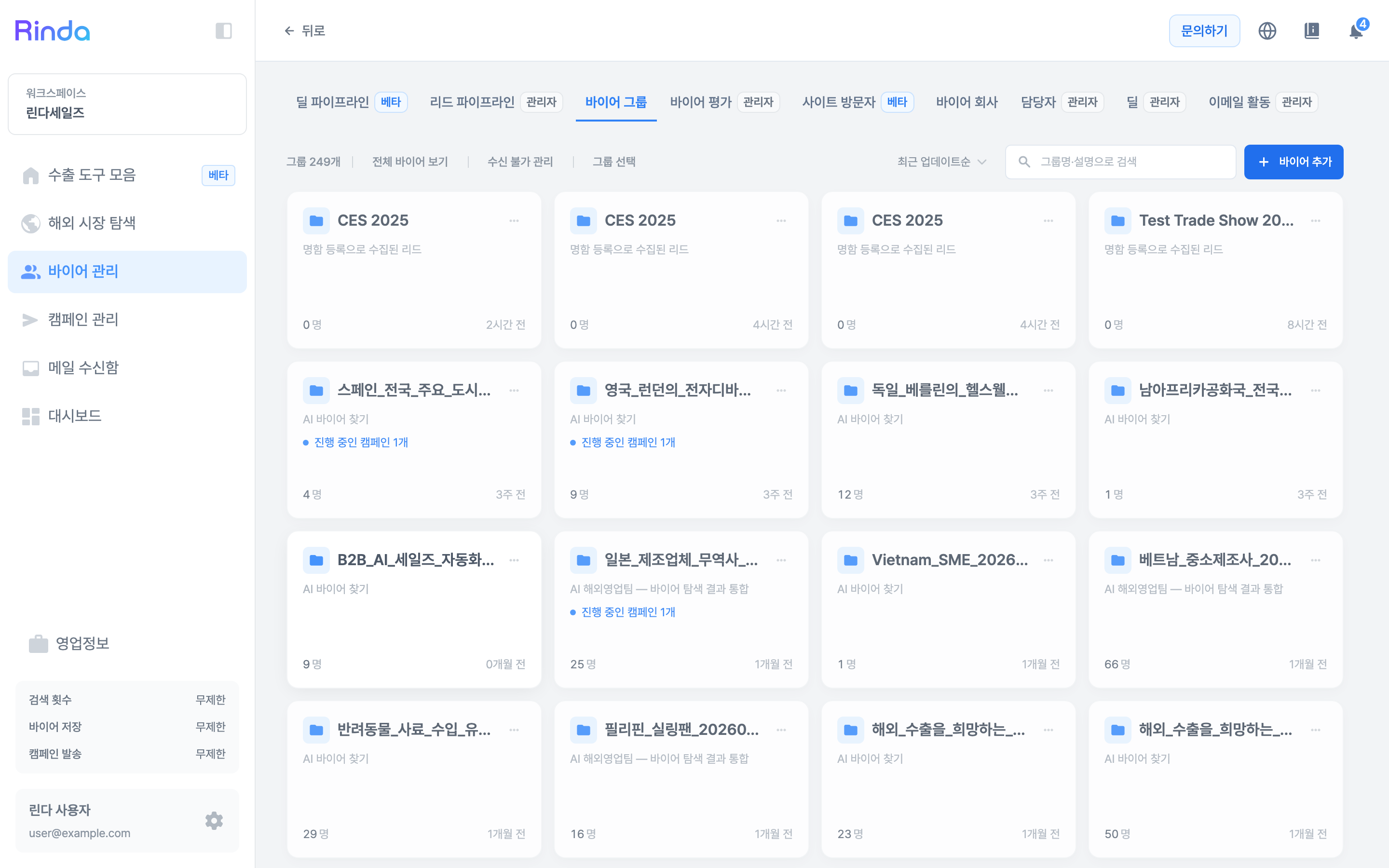
Click [Buyer Management] in the sidebar to see Buyer Groups displayed as cards. Open a group to see its buyers, or click [View All Buyers] to see everyone in the workspace. Use the tabs at the top to jump directly to Site Visitors (Beta) or the Buyer Company list.
2
Add Buyers
You can add buyers individually (using the '+' button) or bulk upload via CSV/Excel files. When uploading a CSV, AI will automatically map the columns for you.
3
Organize into Groups
Group buyers by industry, country, or campaign purpose. Since campaigns are created by group, organizing them here makes it easy to select them later. Register addresses that should no longer be contacted in [Unsubscribe Management].
4
Auto-enrich Contacts
For buyers without email addresses, AI automatically searches for contact information through website analysis.
5
Status Management
Update the progress status for each buyer (New → Contacted → Qualified → Converted) to track your sales pipeline.
6
Download Your Buyer List
Select the buyers you want in the buyer list and click [Download CSV] to get a CSV file that opens directly in Excel. CSV download is available on paid plans (Pro, Team, Enterprise). During the free trial, clicking the button shows an upgrade prompt; upgrade in Settings > Billing and the download unlocks immediately.
Tips
- •Download the CSV template first to ensure your data is in the correct format for easy uploading.
- •Use customer groups to send campaigns to all buyers meeting the same criteria at once.
- •To move buyer data into Excel, use CSV download (paid plans). The file opens directly in Excel.