Export Toolbox
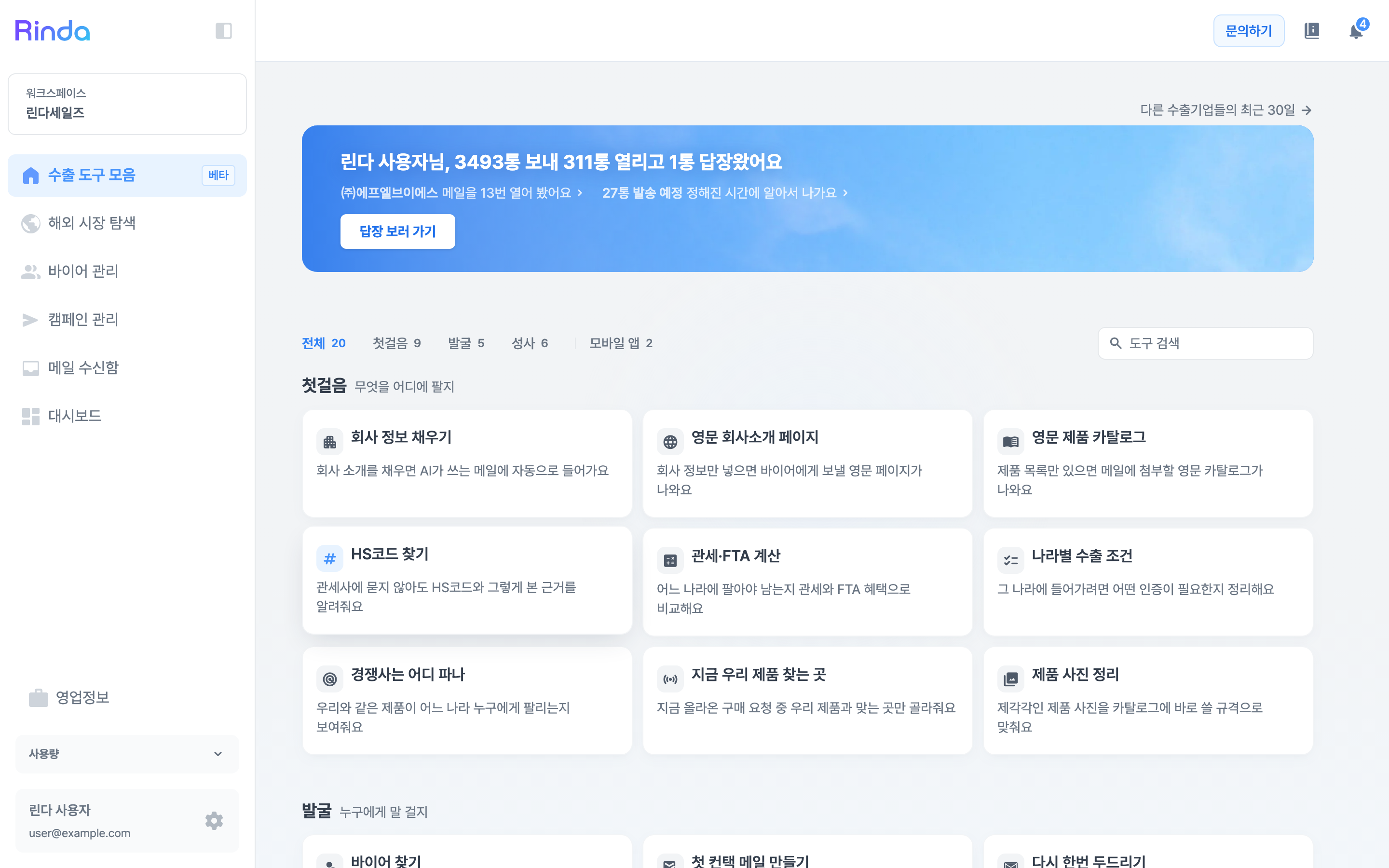
This is a place where all the tools needed for exporting are gathered on a single screen. Grouped into stages—First Step, Discovery, and Closing—as well as a mobile app, you can choose the right tool for your current situation and get started immediately.
How to Use
1
Open Export Toolbar
Click [Export Toolbar] at the top of the sidebar. This is also the first screen you see after logging in.
2
Browse by Steps
Tools are grouped by export progress. 'First Steps' is for deciding what and where to sell, 'Discovery' is for finding who to talk to, and 'Closing' is for turning replies into contracts. Use the tabs at the top to filter by stage.
3
Search by Name
If you know the tool you're looking for, enter its name in [Search Tools] at the right end of the tabs. Only matching cards will remain without changing the screen.
4
Open Tool
Click a card to open the tool. Tools still in preparation appear dimmed; clicking them leads to an introduction screen about what's being prepared.
5
Start with Today's Tasks
The banner at the top shows the single best thing to do right now (e.g., '3 replies received'). Click the button in the banner to go directly to that task. Start here if you're unsure what to do.
6
Get a Diagnosis if Unsure
Click [Get Export Readiness Diagnosis] in the First Steps stage. Answer 8 questions, and we'll pick 3 tools your company needs right now. Once completed, the card disappears; you can retake it from 'Sales Info'.
7
Connect Mobile App for Field Use
The 'Mobile App' tab contains tasks done via phone. Connect 'Linda Field' (Android only) via [Install and Connect] for use during exhibitions or business trips. You can register buyers instantly by taking photos of business cards.