AI Campaign
Once you select a buyer group, AI writes personalized emails for each buyer and automatically sends them at a scheduled time. Before sending, you can check the sender address and sample emails on the review screen, and even receive a test email yourself first.
How to Use
1
Start Creating a Campaign
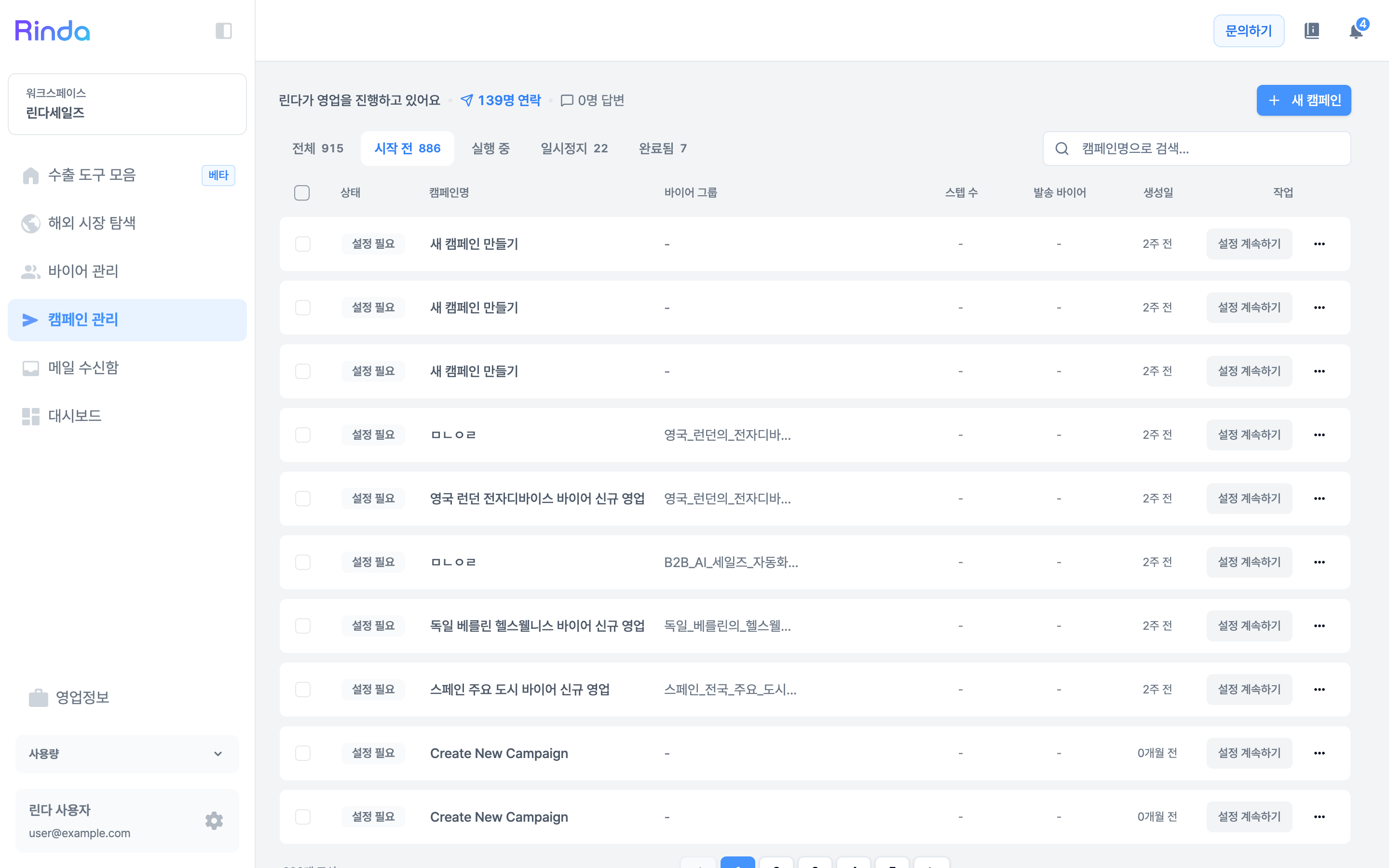
Click [+ New Campaign] under [Campaign Management] in the sidebar to proceed through three steps: Campaign Details → Compose Email → Review and Save. Your progress is automatically saved even if you leave halfway through.
2
Select Recipients First
Set the campaign name and buyer group on the first screen. If you leave the name blank, it will be saved with a recommended default name. Selecting a group is required — the target audience must be decided so that the AI can determine what to write. You can also select only specific buyers within a group to send to.
3
Compose Email
If you choose an AI personalized campaign, it scans each buyer's website and recent updates to write an individualized email for each recipient. AI auto-generation fills in variables within templates, while manual creation (write directly) allows you to add up to 6 email steps and write them yourself.
4
Check Sender Address on the Review Screen
The Sender Address is displayed in the summary bar on the 'Review and Save' screen. You can check which address will be used here, and if you have two or more connected addresses, you can switch between them right on the spot (without having to go back to Step 1). If the address used during creation was disconnected in the meantime, an alert will notify you that 'The sender address has changed' and suggest the most recently connected address first.
5
Send a Test to Your Inbox Before Launching
Use [Test Send] to receive an example email in your own inbox before sending it out for real. Choose which step to send, and the remaining daily test send count will be displayed on the screen.
6
Start Campaign
Review your settings and launch the campaign. Settings for send intervals, sending hours, and adjusting to buyers' local time zones are configured at this stage. You can monitor progress on the campaign list and the dashboard.