Inbox
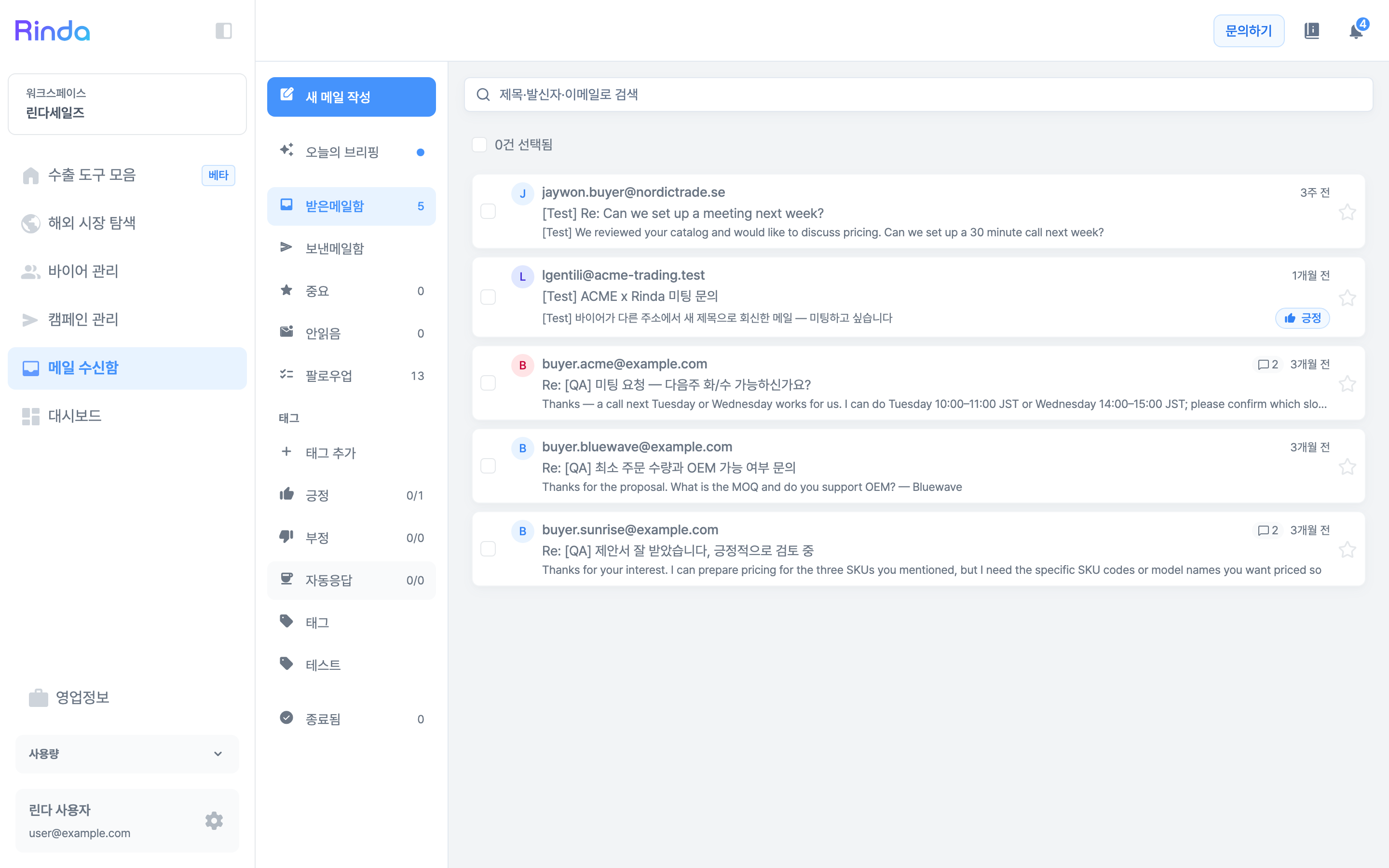
Read and handle buyer replies in one place. Follow conversations in threads and view the buyer's information and campaign progress on the same screen. Once a conversation is closed, no more emails will be sent to that company.
How to Use
1
Open Mail Inbox
Click [Mail Inbox] in the sidebar. The list on the left starts with 'Today's Briefing', followed by 'Inbox · Sent', 'Important · Unread · Follow-up', 'Tags', and 'Closed' at the very bottom.
2
Start with today's priorities
'Today's Sales Briefing' organizes replies that are best to respond to first. If you are not sure what to open first, start here.
3
Read threads
Clicking an email opens the entire conversation, showing your sent emails and buyer replies in chronological order. You can also view the replying buyer's company information and campaign stage. Going back returns you to the exact page and position you were viewing.
4
Filter by tags
Replies are automatically categorized with 'Positive · Negative · Auto-reply' tags. If you want to check interested buyers first, select 'Positive'. If you have separate criteria, you can also create and apply custom tags via [Add Tag].
5
Close finished conversations
For conversations that no longer need outreach, click [End Follow-up]. Once closed, no more emails will be sent to that company — even if the same address is included in another campaign, it will be blocked. Leaving a reason and note when closing will record them directly in the 'Reason' field of the blocklist, allowing you to know why it was blocked even months later.
6
Reopen if you need to contact them again
Closed conversations are gathered under 'Closed' on the left. If you ever need to contact them again, click [Reopen]. It will return to your inbox and the sending block will be lifted.