Find HS Code
When you select a product, it shows candidate HS 6-digit codes along with the reasoning. Since the explanation for the code is provided, it speeds up the conversation when getting confirmation from a customs broker.
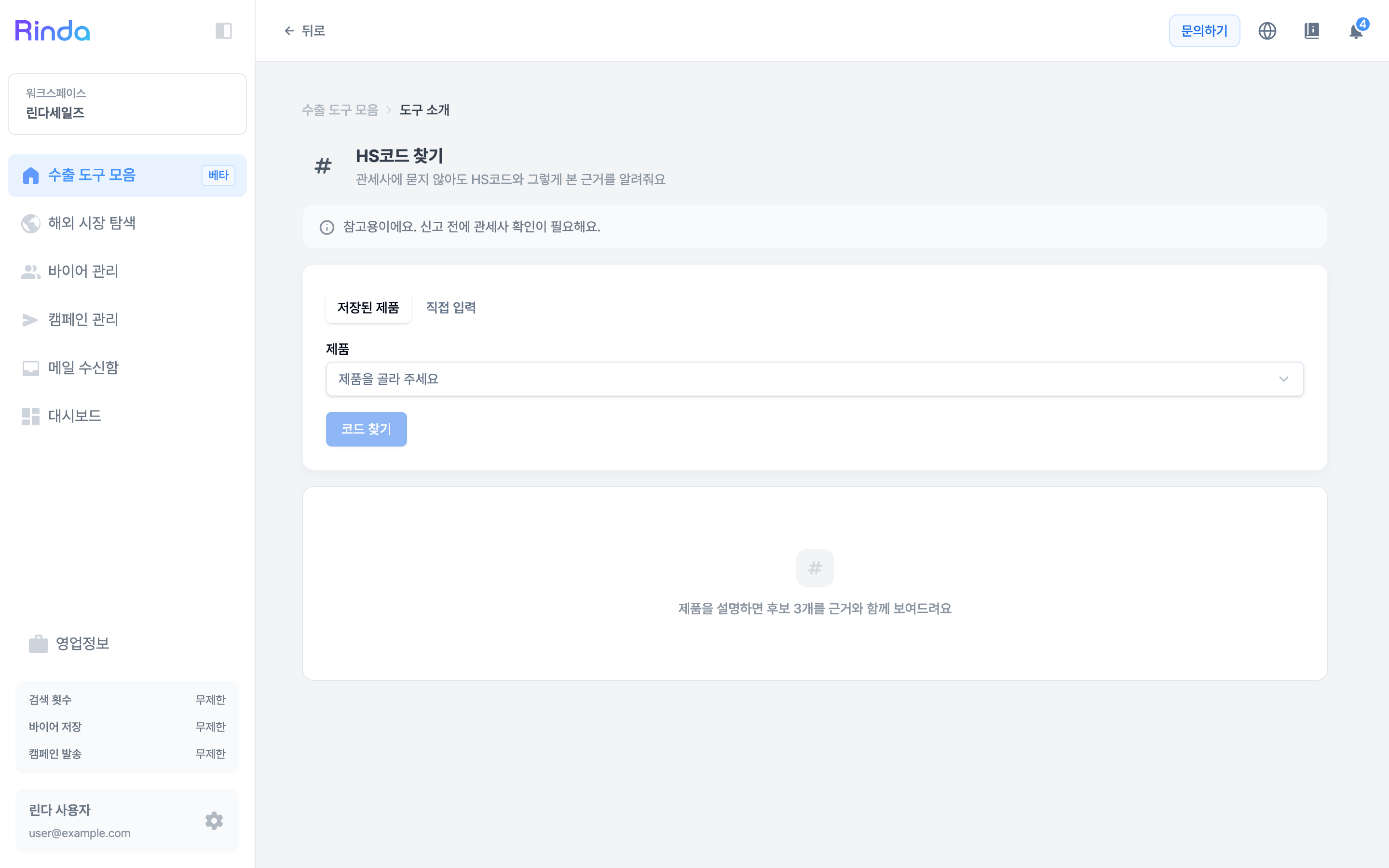
How to Use
1
Open HS Code Finder
Click the [HS Code Finder] card in the first step of the 'Export Toolkit'.
2
Select a Product or Enter Manually
In the 'Saved Products' tab, you can select a product already registered in your business information. If it's not registered yet or is a one-time search, write the product description in the 'Direct Entry' tab. The more details you include about material, purpose, and shape, the narrower the candidates will be.
3
Click Find Code
Click [Find Code] to see 3 candidates along with their supporting reasons. We provide multiple options because it is more accurate for you to see where the item classifications differ and choose for yourself.
4
Read Reasons and Select
Each candidate includes the reasoning for why that code was suggested. If a reason conflicts with your product description, exclude that candidate and use the remaining code for customs/FTA calculations or country-specific export conditions.