Tool Stabilization, Simplified Settings — v2.9.6.0 Update
Hello, this is the Rinda Team.
In our last update, we opened 6 additional tools in the [Export Toolset].
This time, instead of opening new tools, we've cleaned up the screens that many of you mentioned were "confusing because there are so many settings and I don't know what's turned on."
However, after cleaning them up, we realized that you might not have even known those screens existed in the first place.
So, rather than focusing on what has changed, we'd like to start by explaining where these screens are and what they do.
Where AI prepares drafts when a reply arrives — 「Follow-up」 in [Mail Inbox]
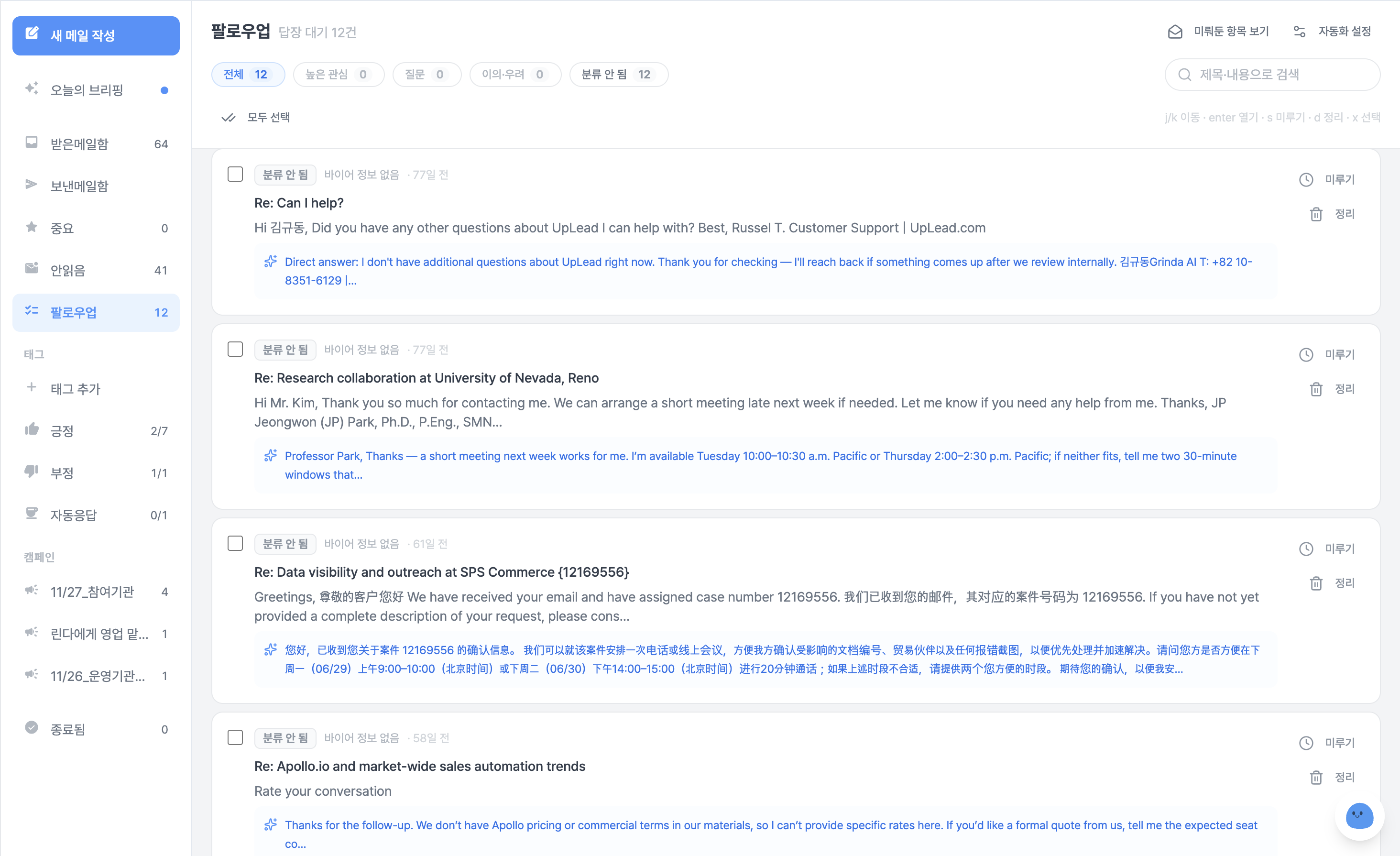
If you haven't seen this screen yet, we'd like to introduce this feature before the update itself.
Inside the left menu [Mail Inbox], there is a section called 「Follow-up」.
After you send a campaign, when a buyer replies, Rinda reads the reply and prepares a draft reply in advance.
You just need to review the draft, make any necessary edits, and send it.
The email is only sent when you personally click the send button. We never send emails on your behalf.
Replies are categorized and stacked — Meeting Request, Positive Interest, Question, Objection/Concern, Out of Office, No Interest.
If you filter by 「High Interest」, you can see what needs to be answered first.
You can move items that are difficult to answer right now to 「Snooze」, or clear out ones you don't intend to answer with 「Archive」.
You can configure several settings in that 「Follow-up」 section
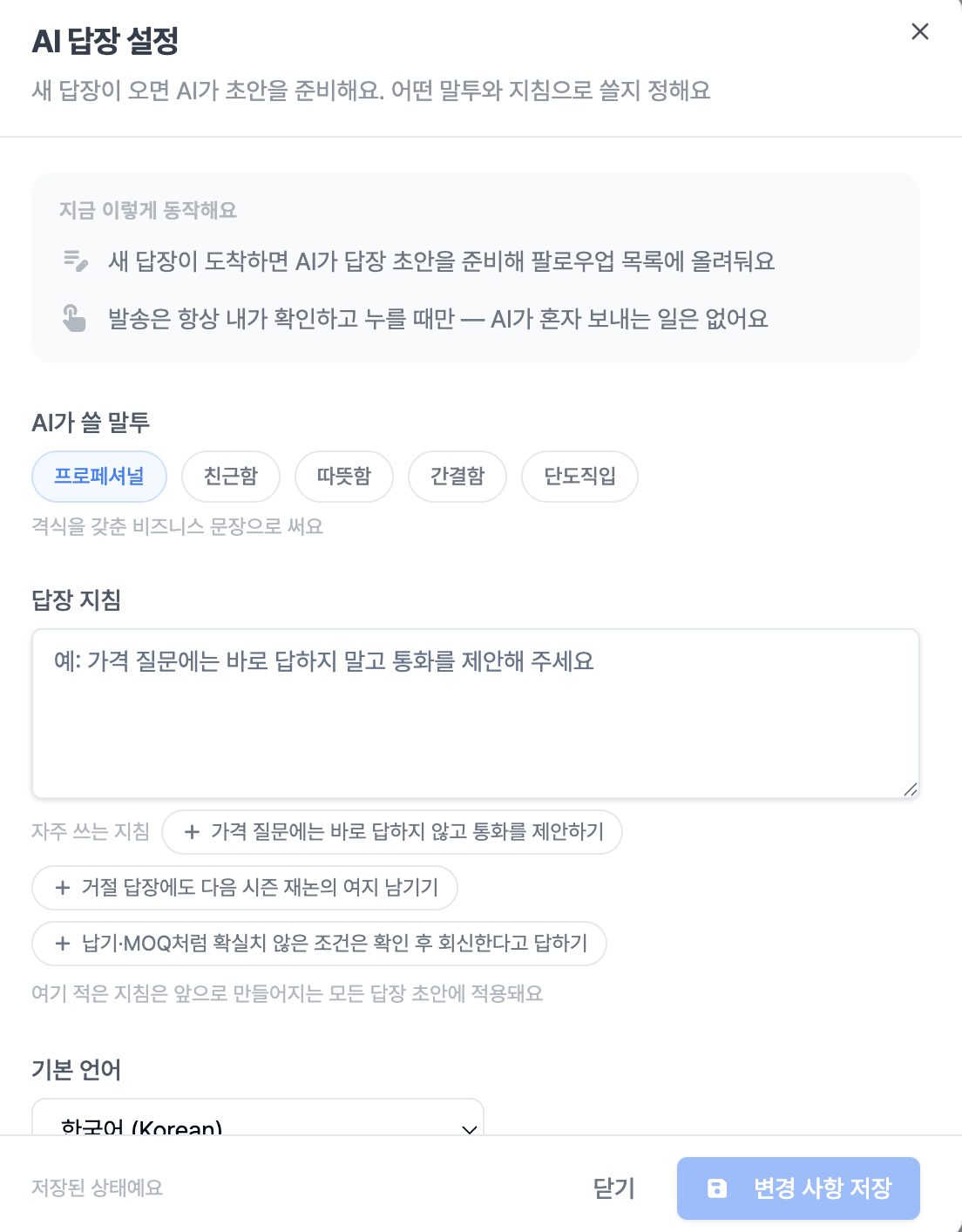
Your preferred tone and reply guidelines are reflected in the draft. If you write down instructions like "Please suggest a call when there is a price inquiry," they will be reflected accordingly. If you're not sure how to write them, you can click on the three examples provided.
We let you know what is currently active at the top of the screen. When a new reply arrives, the AI prepares a draft, and sending only happens when you personally click the button.
Settings can be checked in 「AI Reply Settings」 on the 「Follow-up」 screen. If you haven't changed the settings before, the drafts created will be the same as before.
「Block List」 for places where you shouldn't send emails
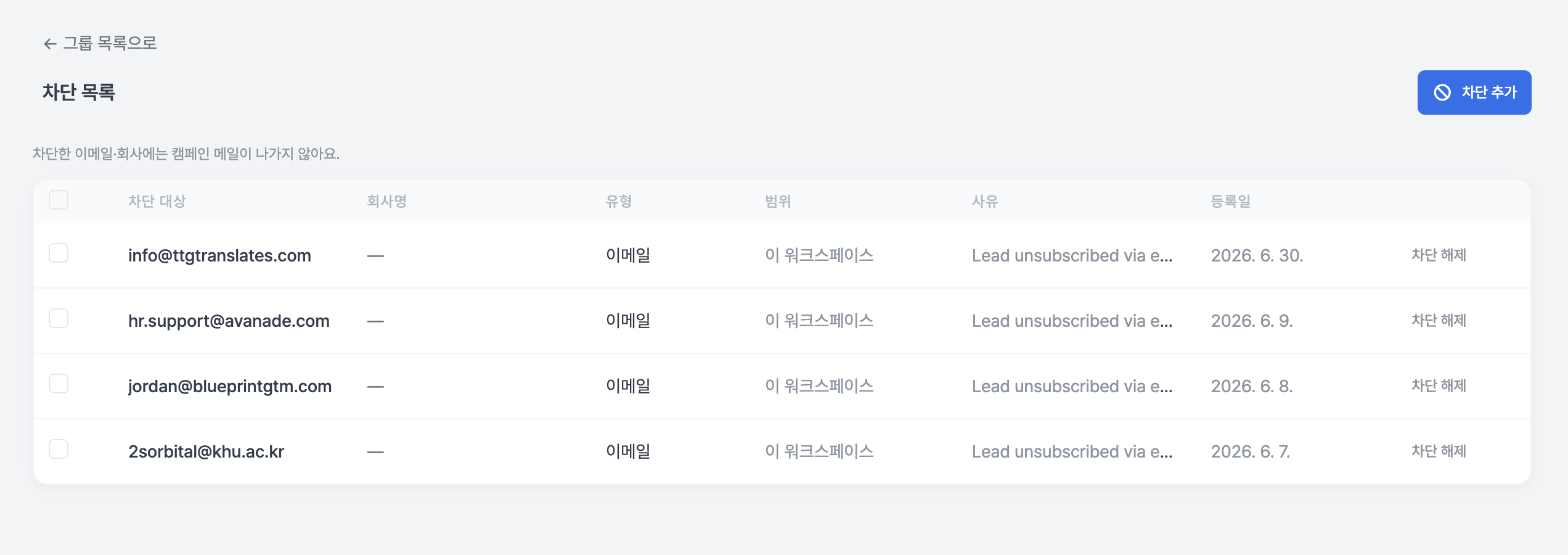
If you go to [Buyer Management] in the left menu, you will see a 「Block List」 above the group list.
Campaign emails will not be sent to the email addresses and companies you have added here.
You can block a single email address, or you can block an entire company. For an entire company, just enter the address after the @, and all addresses for that company will be blocked.
When blocking, you can leave the company name and reason together. This is because if only the address remains, you won't know who it was a few months later. You can select a reason from the list, or if it's not there, you can write it yourself under 「Other」.
Even if there are many items, all of them are visible, and you can find them through search and pagination.
Buyers who were excluded from sending due to being blocked are also shown on the screen.
Addresses where the buyer has directly expressed an opt-out are displayed as 「All Client Companies」. You cannot unblock these addresses from your side; they are only unblocked if the recipient informs you that they wish to receive emails again.
We have consolidated the screens into one place this time. You can filter opted-out/bounced buyers by status in the [Buyer Management] list.
Other Changes
We have refined the banner and background on the first screen of the [Export Toolset].
Team members who have been invited can now work together. We fixed the issue where the introduction/English catalog screen wouldn't open on team member accounts, and where campaign creation and Copilot were blocked.
You can check how prepared your company is for export with a score. You can go to 「Get Export Readiness Diagnosis」 on the first screen of the [Export Toolset]. It takes 8 questions and about 2 minutes to complete, and we don't just give you a score; we show you what has been filled in and what remains by category. You can also share the results via a link.
You can download the app for registering business cards received in the field directly from the [Export Toolset]. If you go to the 「Business Card Photo Registration」 card, the installation and connection methods are all on one screen. If you are viewing on a computer, just point your phone at the QR code, and you can connect using your email and a 6-digit verification code. (Currently only supports Android.)
When you click 「English Product Catalog」 in the [Export Toolset], the list of introductions you have created will now open first. You can create multiple, name them, or delete them. When creating a new one, we show you four cover candidates first, so you can choose the one you like.
You can retrieve and reuse export documents. The documents you created remain, so you can duplicate or reissue them, and you can also see the issuance history.
We provide guidance on where and how to obtain a Certificate of Origin. Since this is a document we cannot create for you, we have summarized the issuing authorities and procedures instead.
The HS Code search and Tariff/FTA calculation screens have been changed to be more intuitive. We have cleaned up the parts where you felt stuck in front of a blank screen not knowing what to enter. We also fixed the issue where the tariff basis link always only showed 「When exporting from Korea」.
We have reorganized the first screen and entry cards of the English Company Introduction page.
You can resume sending after payment if it was stopped due to a payment interruption. You don't need to create it from scratch.
When sending is delayed, we inform you of the reason by category. The screen will tell you if it's due to a plan limit or the daily limit of the email account itself.
We fixed the text that incorrectly guided the reason why an email was not sent. We corrected the issue where cases stopped due to address verification were guided as "Could not find sending time," and corrected phrasing that stated verification results as confirmed facts.
We no longer send to addresses that the recipient has permanently rejected.
Follow-up drafts are now in the language the buyer uses. We fixed the issue where they were appearing in Korean.
Buyer search finds more results that were previously missed. We fixed the issue where search history was only partially saved and adjusted the criteria for judging the role of the person in charge.
We fixed the issue where 「Proceed after information collection」 was not collecting any emails.
We fixed the issue where emails from unrelated companies were attached to buyers without a website.
When choosing a market, we now show 「whether replies come from that country」.
The number of places you can send to is displayed in the first step of creating a campaign.
We organized the gallery cards in the buyer list into 「Create Group」. It did the same thing as the button above.
The appearance of the emails you send is now the same as the composition screen. We fixed the issue where the spacing of paragraphs, lists, and quotes would collapse in the recipient's inbox. (Reflected earlier last week.)
When uploading a buyer list, the preview is now the same as the actual result. We restored missing lines and you can choose whether to include buyers to be merged into a group. (Reflected earlier last week.)
Meeting titles have been shortened for at-a-glance viewing, and titles are now attached to meetings created from business cards.
The first screen for new users now shows actual values instead of example numbers. Guidance on what to do first is also provided again.
Interpretation meeting records no longer disappear in the middle. Even interpretations that were disconnected and reconnected now include the entire preceding part in the summary. (Reflected earlier last week.)
We consolidated the inquiry pop-ups into one.
We unified the plan name to 「Partners」.
This time, rather than a major update, we focused on the stabilization of export tools and service stability.
It's like a short vacation(?) period has been given to the Rinda service, which has been running hard so far.
Of course, our Rinda service will not stop and will continue to improve day by day.
If you encounter any issues while using it, please let us know anytime via 「Request New Tool」 at the bottom of the [Export Toolset] or by clicking the inquiry button at the bottom right of the screen.
Thank you.
Sincerely, Rinda Team
Last updated August 20, 2026